This is a new topic in 12.03.
This is a new topic in 12.04.
Content highlighted in yellow is new in 12.03.
Content highlighted in blue is new in 12.04.
Checklist Types
Checklist types are used to categorise checklists into groups, typically based on the type of employee who will be responsible for completing the checklist. Every checklist template must have an assigned checklist type. Security groups can be specified for each checklist type to restrict which users will be able to see checklists of that type. In this way, checklists can be hidden from users to whom they are irrelevant.
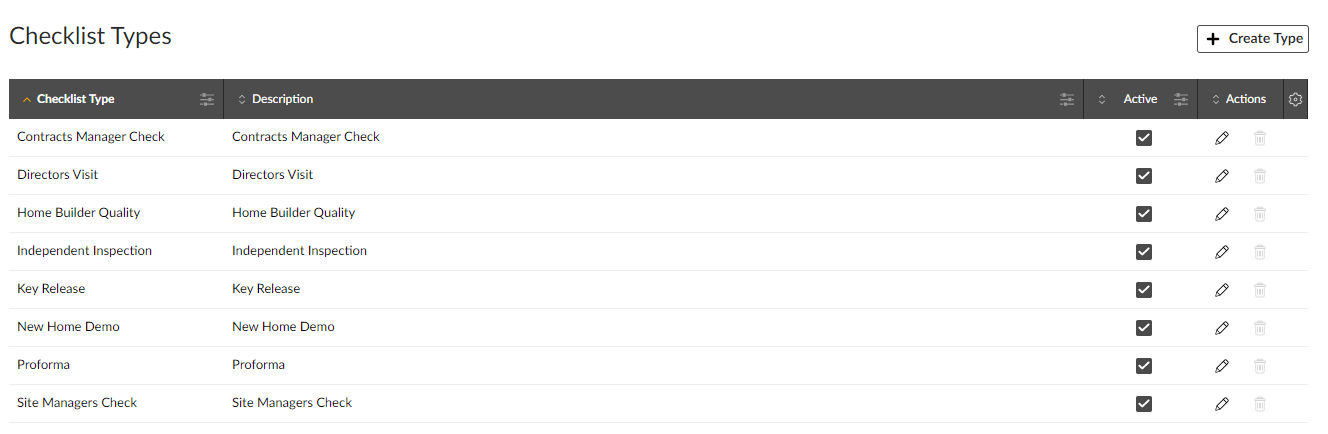
Checklist types can be created, edited and deleted from the Checklist Types screen. New tenants start with the eight default checklist types shown in the screenshot below.
Creating a checklist type
-
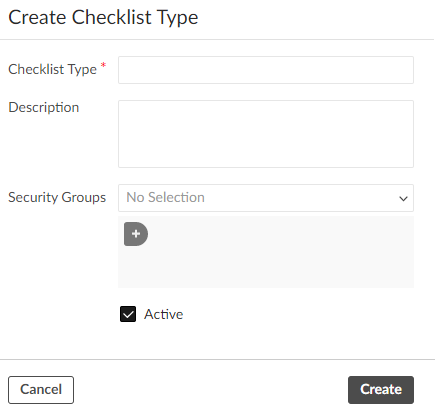
Click the + Create Type button. This opens the Create Checklist Type window.
-
Complete the fields as follows:
|
Checklist Type |
Enter a name for the checklist type. |
|
Description |
Optionally enter a description of the checklist type. |
|
Security Groups |
If you wish, you can select which security groups will have access to this checklist type. Users not belonging to at least one of the specified security groups will not be able to see checklists of this type. If this field is left empty, all users will have access to checklists of this type. |
|
Active |
Leave this box ticked to make this an active checklist type or untick the box to make it inactive. Only active checklist types can be assigned to new checklist templates. |
-
Click
 to create the checklist type.
Editing a checklist type
In-line editing is enabled for the Checklist Type and Description fields and the Active checkbox within the grid. To edit the security groups for a checklist type, click the pencil icon  in the Actions column to open the Edit Checklist Type window and make the necessary changes.
When an active checklist type is changed to inactive, users will no longer be able to assign it to new templates and existing templates will no longer be able to change to that type. However, existing templates which were already using the checklist type before it was made inactive will continue to use that type until they are changed to an active type.
Deleting a checklist type
To delete a checklist type, click the trash can icon  in the Actions column. Note that checklist types can only be deleted if they are not assigned to any checklist templates (current or otherwise).