This is a new topic in 12.03.
This is a new topic in 12.04.
Content highlighted in yellow is new in 12.03.
Content highlighted in blue is new in 12.04.
Expense periods are windows in which expenses are submitted, at the end of which, all expense reports which have been approved will be paid. Each expense period has an Expenses Cut Off Date, before which expense reports must be approved if they are to be paid at the end of that period. Expense periods can be sent from COINS ERP+ Payroll or, if you do not have access to Payroll, you can create them from the Expense Periods screen.
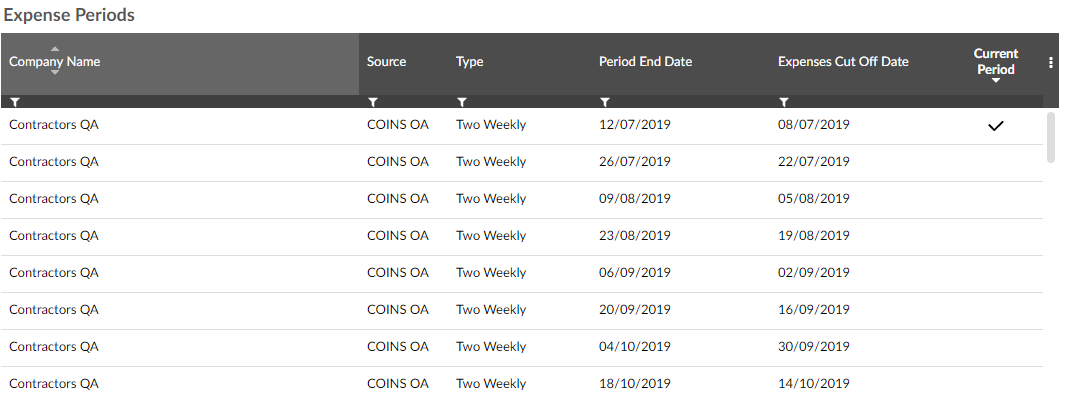
The Expense Periods screen contains a list of expense periods that have been created in Expenses or sent from COINS ERP+. The current period is marked by a tick in the Current Period column.
Creating an Expense Period
-
Right-click a period in the grid, or left-click a period and click the menu icon
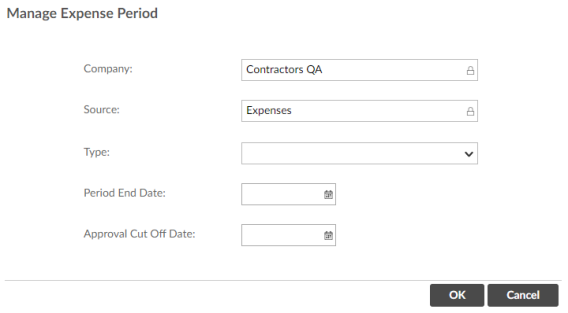
 , then click Add Cut-Off Date. This opens the Manage Expense Period window.
 -
Select a period type from the Type drop-down list.
-
Enter the Period End Date.
-
Enter the Approval Cut Off Date. This is the date by which expense reports must be approved by management and finance, in order to be paid at the end of the period. This must be at least one day before the Period End Date.
-
Click
 to save the expense period.
Modifying Cut-Off Dates
If your expense periods are being sent from COINS ERP+, the cut-off dates can be set automatically via Expense Parameters (see Expense Parameters). Whether the periods were sent through or created within Expenses, the cut-off dates can also be changed manually from the Expense Periods screen.
-
Right-click the period for which you wish to set or change the cut-off date, or left-click the period and click the menu icon
, then click Modify. This opens the Manage Expense Period window for that period. -
Enter the new date in the Approval Cut Off Date field.
-
Click
to save your changes.